拍了好几天、照片分在几个文件夹?实验室里的多目录选鸟一次处理完。Several days of shooting in several folders? Labs → Multiple folders handles them in one go.
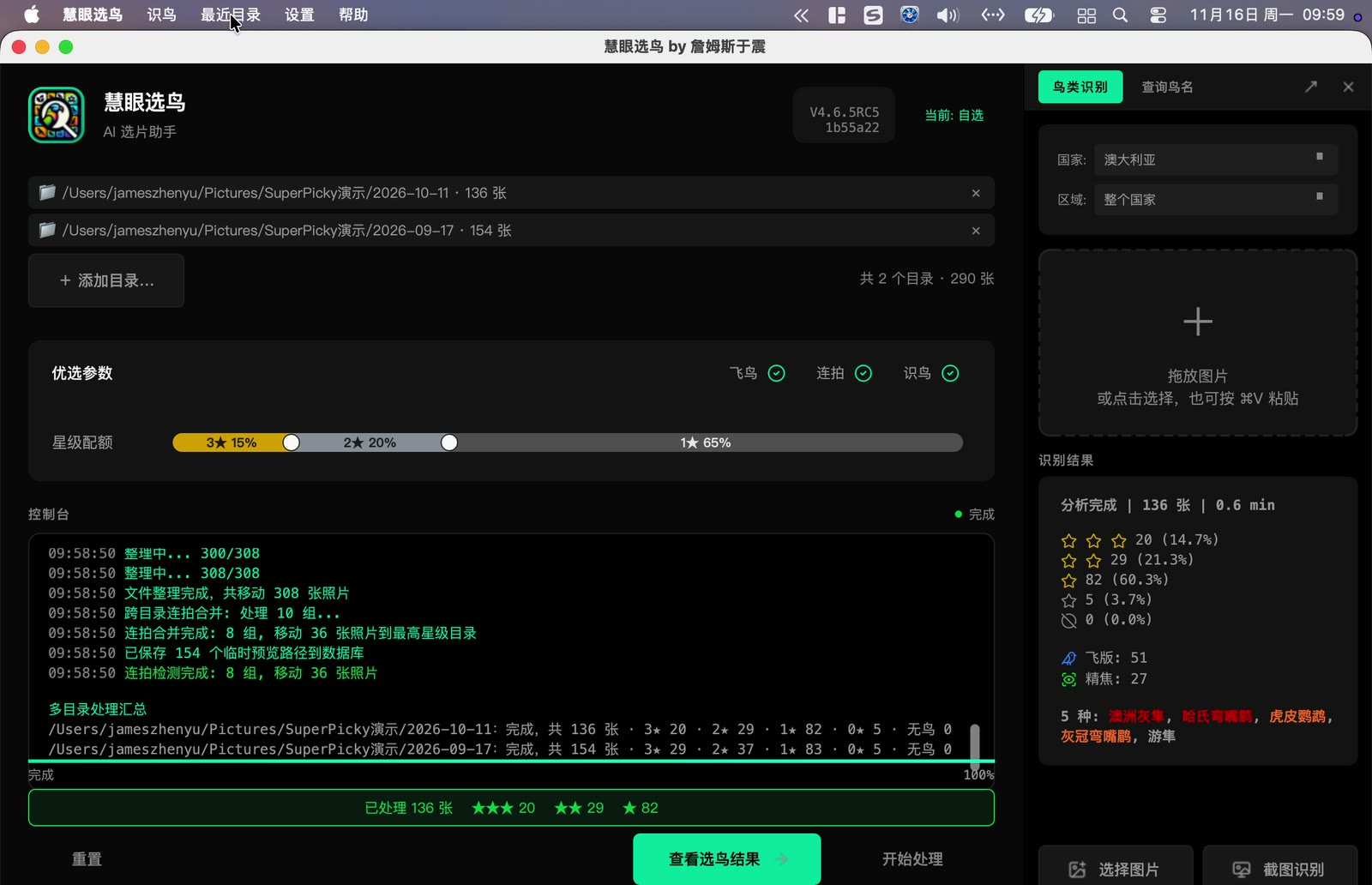
在 设置 → 实验室 打开 多目录选鸟。这个功能还在实验阶段,默认关闭。
Enable Multiple folders in Settings → Labs. It is experimental and off by default.
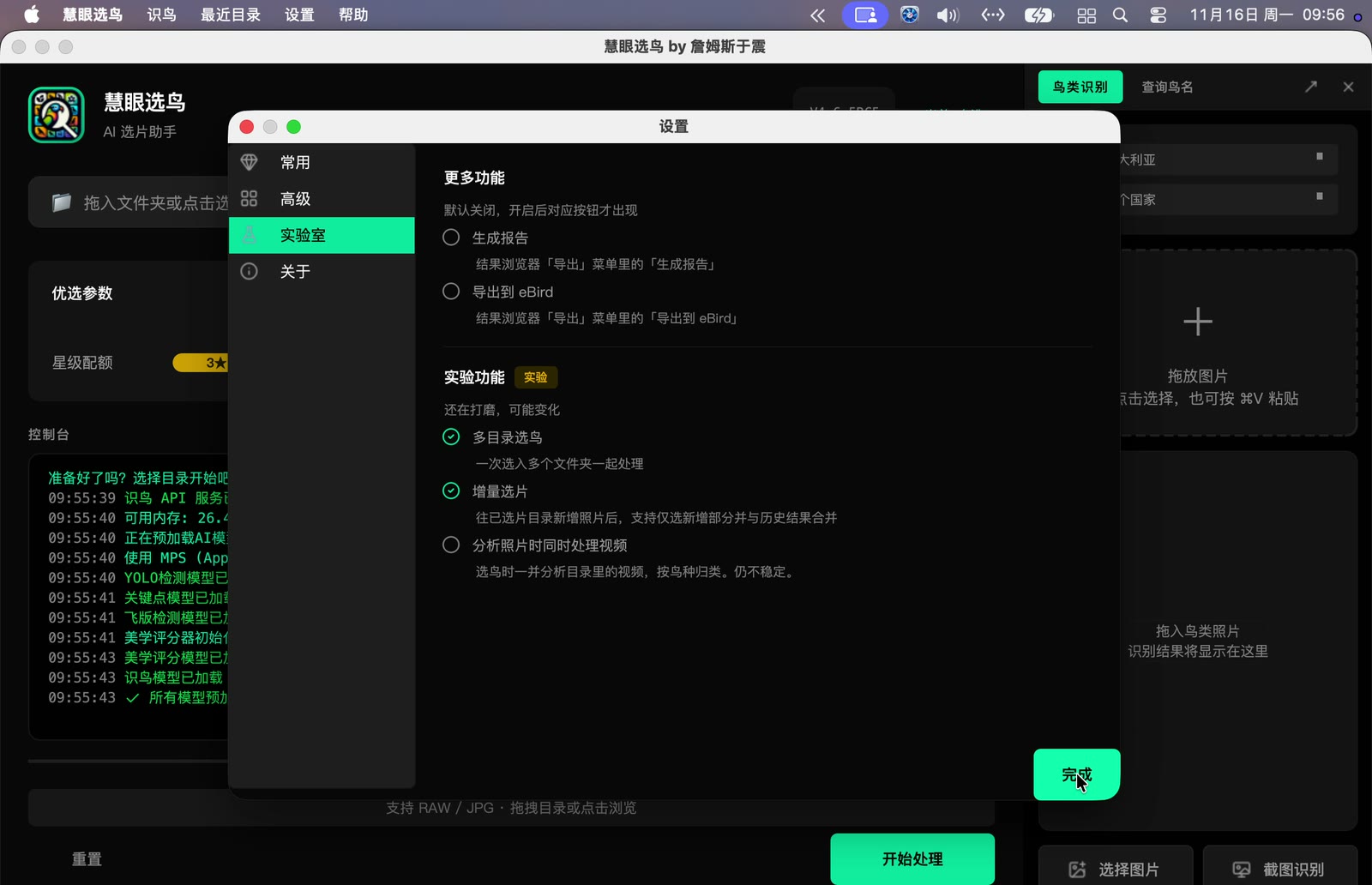
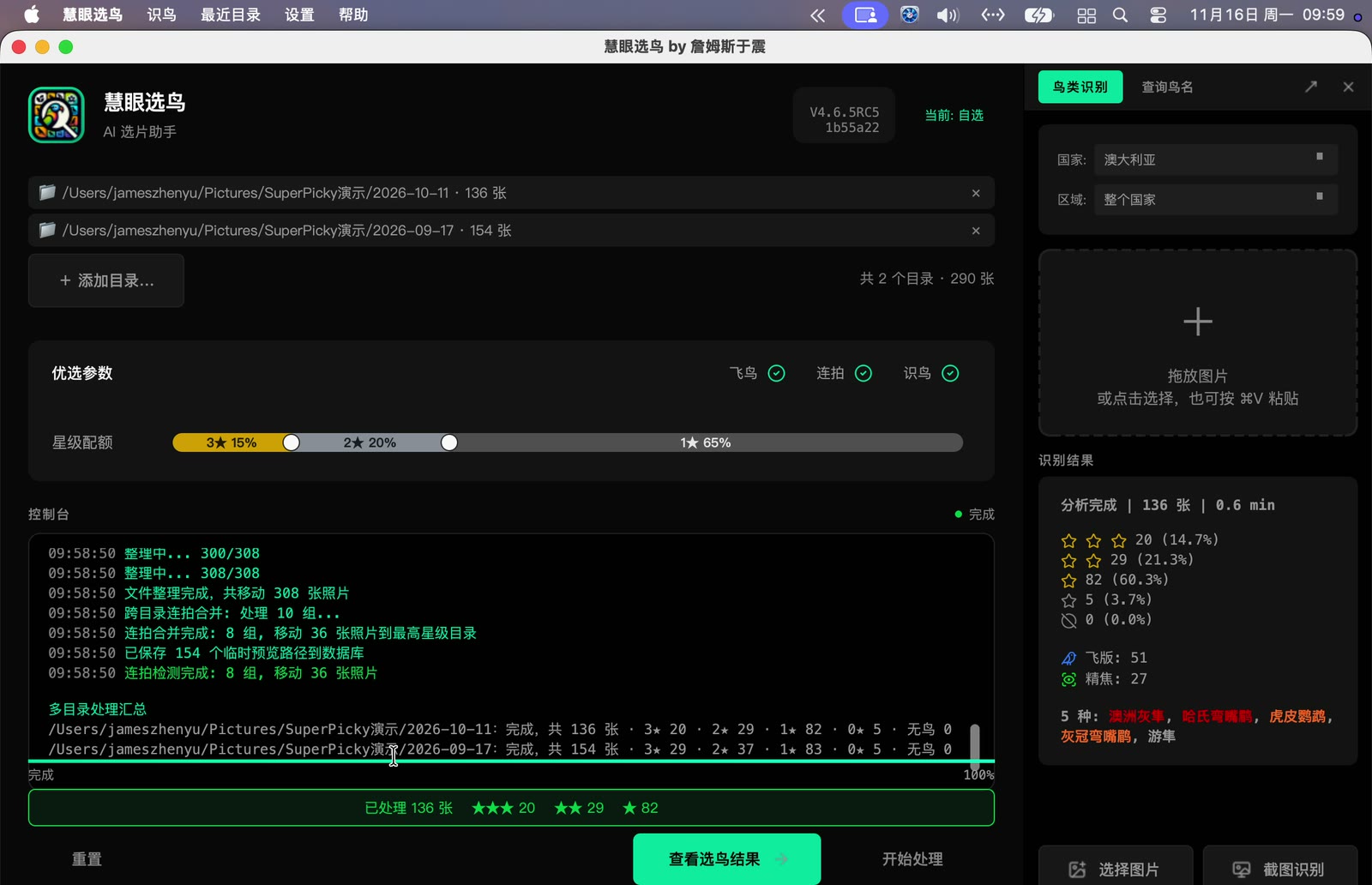
主界面的目录栏变成一个列表。点 添加目录 选好文件夹即可加入;每一行后面有删除按钮,下面显示共几个目录、多少张照片。
The folder bar becomes a list. Click Add folder to add one; each row has a remove button, and the total folder and photo count is shown below.
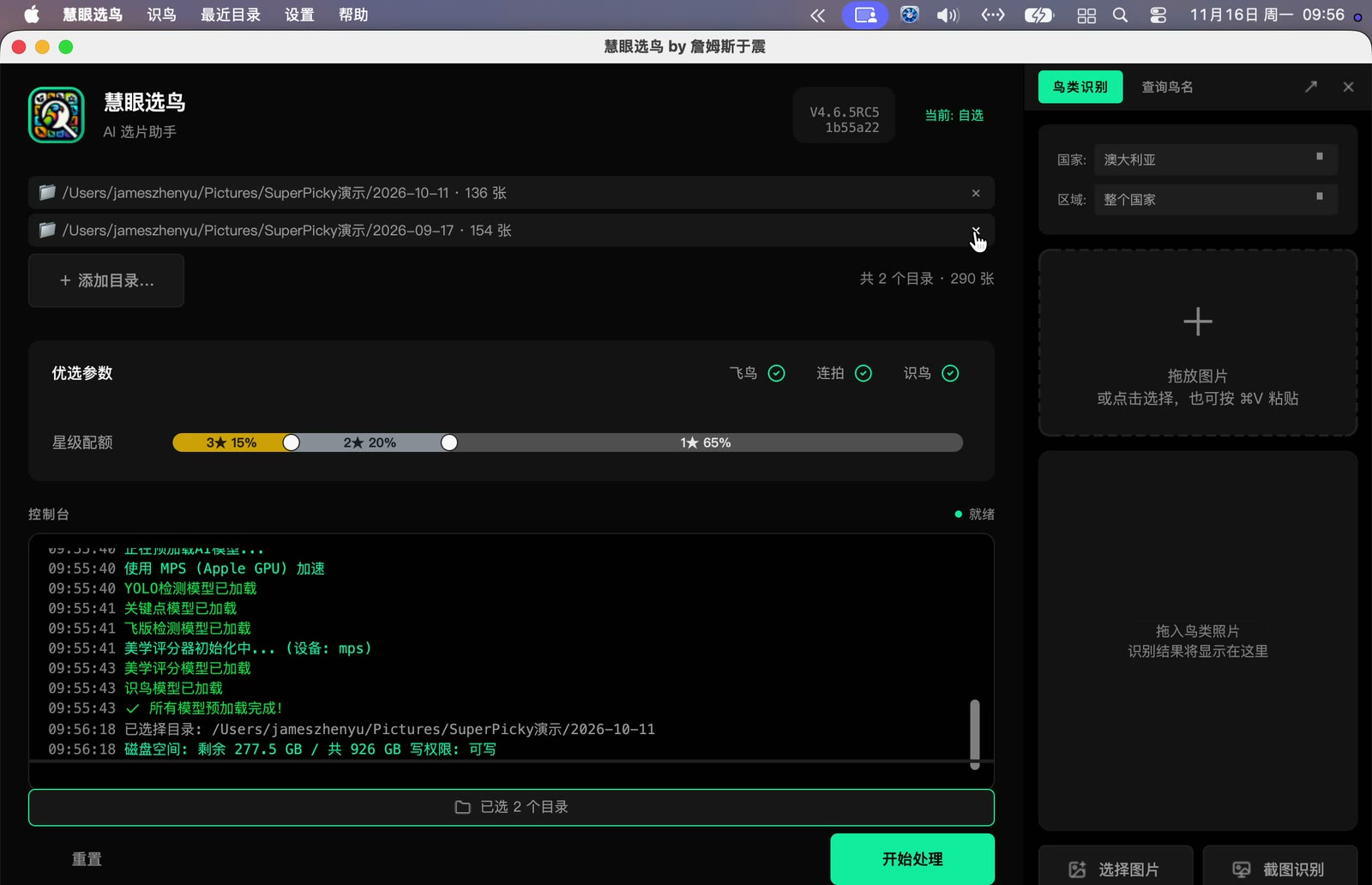
点 开始处理,确认框只弹一次。软件按列表顺序,一个目录处理完再开始下一个。
Press Start; you confirm once. Folders are processed one after another in list order.
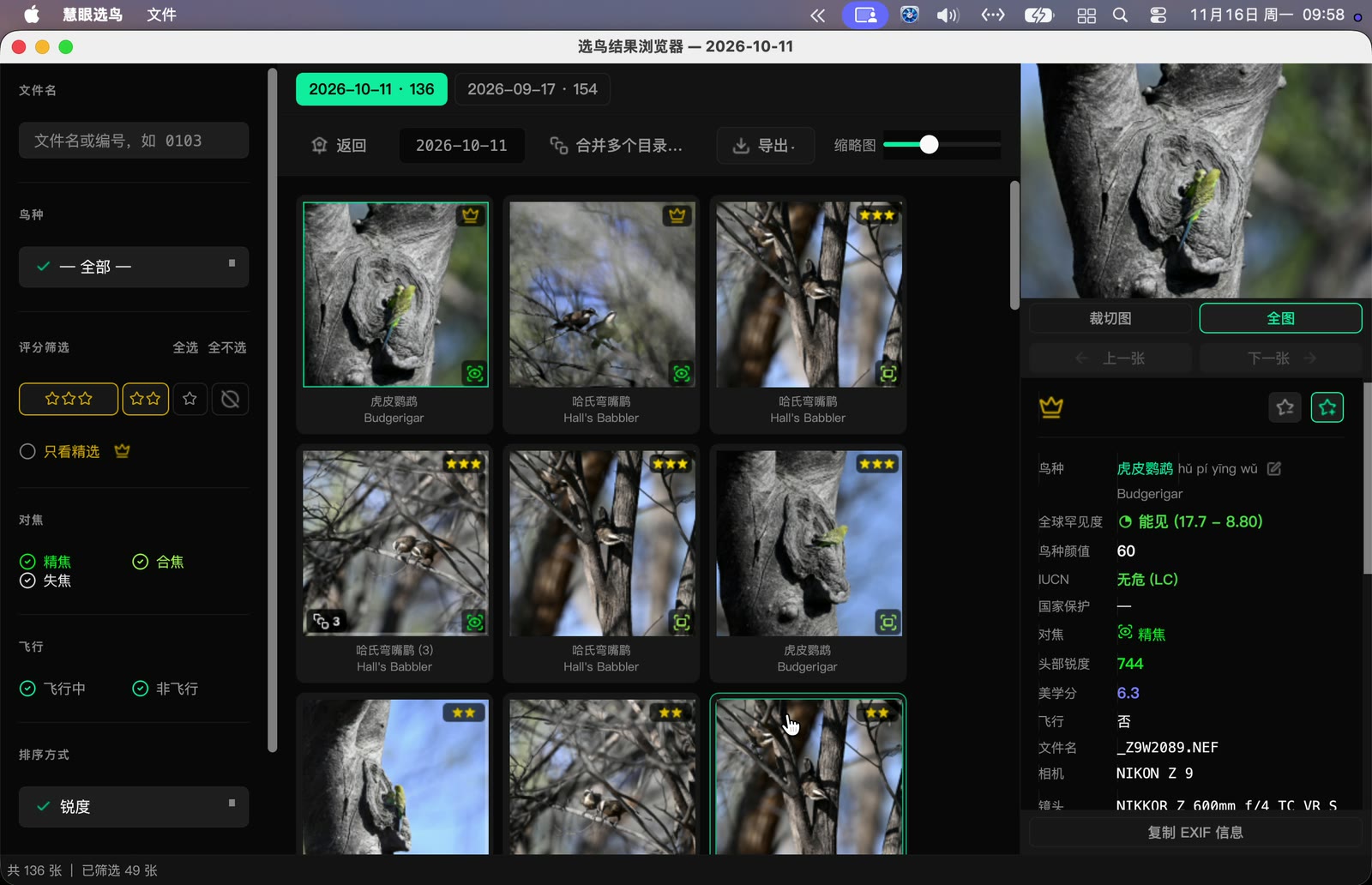
结果浏览器顶部多了一排 目录标签,每个目录的结果分开,点一下切换。主界面控制台里有 多目录处理汇总,列出每个目录的张数和星级分布。
The Result Browser gains a row of folder tabs; each folder’s results are separate. The console shows a multi-folder summary with counts and rating split per folder.
多目录时 重置会作用于整个列表。只想重置其中一个,先把其他目录移出列表。这一组目录也会作为一条记录保存在最近目录里。
With multiple folders, Reset applies to the whole list — remove the others first if you only want to reset one. The set is saved as one entry in Recent Folders.