2.1
整体布局区域划分
Layout Overview
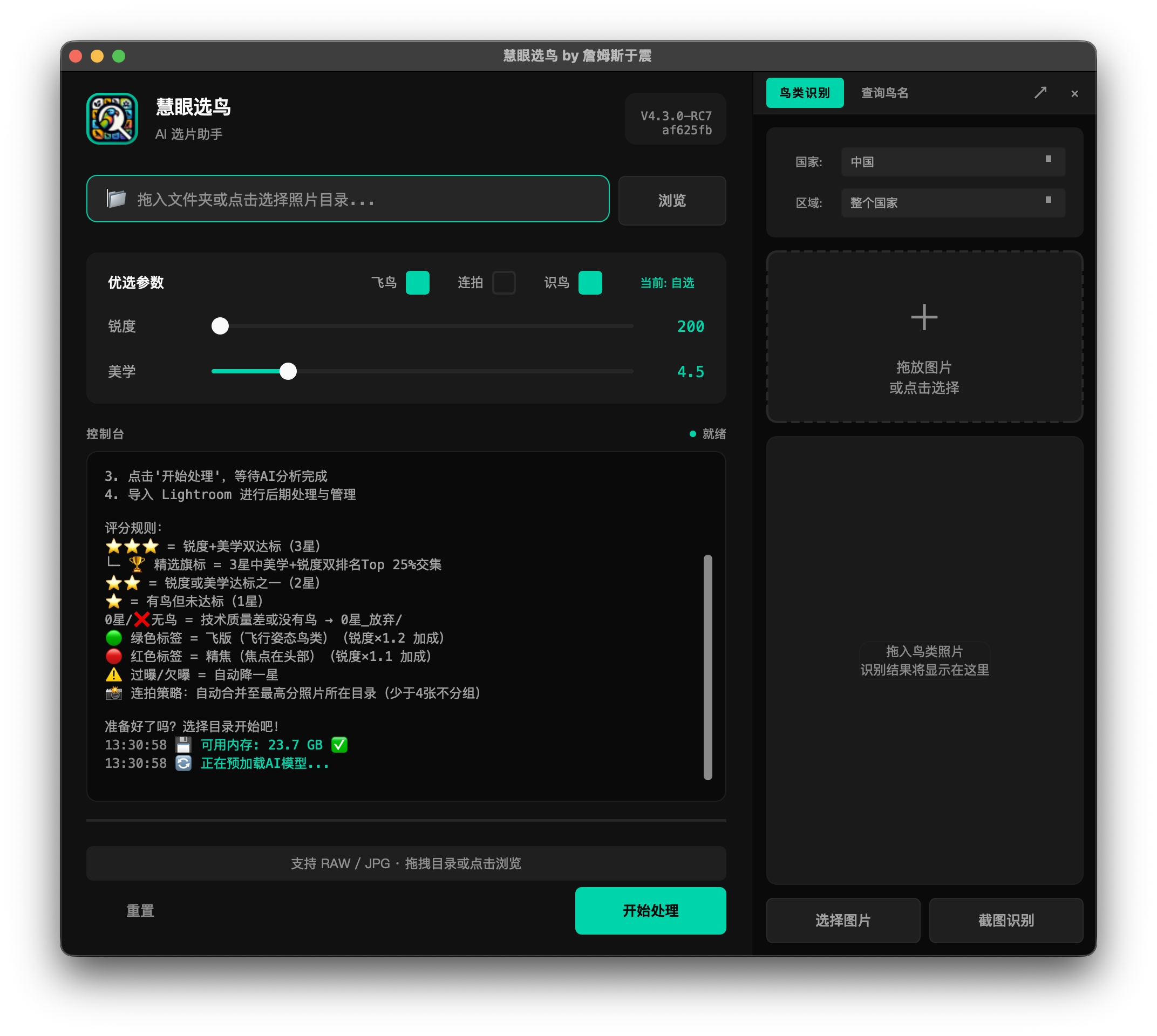
主窗口从上到下分为六个垂直区域,每个区域承担一项具体职责:
The main window is divided into six vertical areas from top to bottom, each with a specific role:
-
01
头部区域 — 软件品牌名"SuperPicky 慧眼选鸟"、副标题和版本号。平时不参与操作,只做标识。
Header — App brand name "SuperPicky", tagline, and version. Non-interactive, used for identification only.
-
02
目录选择区域 — 路径输入框 + 「浏览」按钮。支持三种输入方式:点击「浏览」、直接键入或粘贴路径、将文件夹从 Finder / 资源管理器拖入输入框。
Directory Area — Path input field + Browse button. Accepts input three ways: click Browse, type/paste a path, or drag a folder from Finder/Explorer onto the field.
-
03
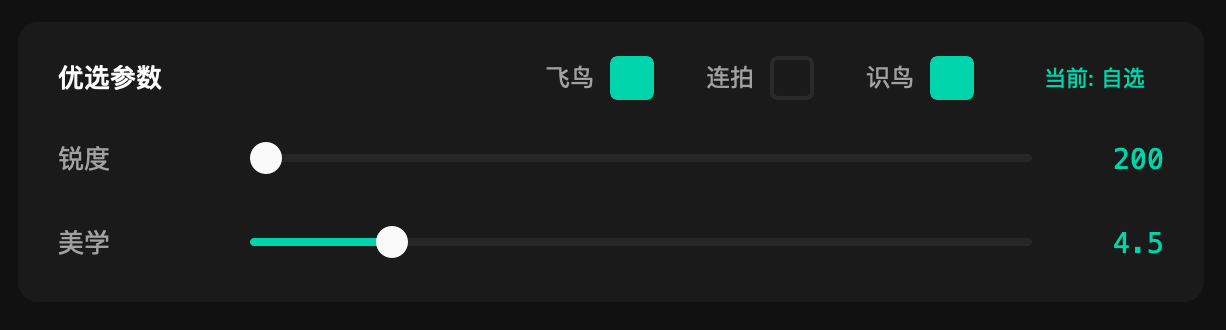
参数设置区域 — 摄影水平预设按钮,以及飞版检测、连拍检测、识鸟三个开关,加上锐度和美学两条阈值滑块。这是开始处理前配置的核心区域,详见第 03 章。
Parameters Area — Skill level preset button, BIF / Burst / Bird ID toggles, and Sharpness / Aesthetics sliders. This is the main configuration area before starting a cull. See Chapter 03.
-
04
日志区域(Console) — 实时显示每张照片的处理结果(鸟是否检测到、星级、耗时等),处理结束后显示完整统计摘要。
Log Area (Console) — Shows real-time results for each photo (bird detected, star rating, time taken), and a full summary when done.
-
05
进度区域 — 进度条 + 百分比数字,以及当前正在处理的文件名,随时掌握处理进度。
Progress Area — Progress bar with percentage and current filename, so you always know how far along the cull is.
-
06
底部按钮区域 — 三个操作按钮,控制整个工作流的核心动作,详见 2.2。
Button Area — Three action buttons controlling the core workflow. See Section 2.2.
窗口右侧默认停靠识鸟面板(BirdID Dock),可通过菜单「识鸟 → 识鸟面板」收起或展开,详见第 08 章。
On the right side, the BirdID Dock is docked by default. Toggle it via the Bird ID menu. See Chapter 08.
2.2
三个核心按钮
Three Core Buttons
底部按钮区是整个工作流的控制中心。三个按钮分别对应工作流的不同阶段,状态会随处理进度自动切换:
The button area at the bottom is the workflow control center. Each button corresponds to a different phase of the workflow and changes state automatically:
重置
Reset
重置(左侧,幽灵样式)
Reset (left, ghost style)
仅在当前目录已有处理历史时可用,其余情况为灰色不可点。点击后可清除本次结果,重新选参后再处理。详见第 11 章。
Only active when the current folder has existing processing history. Clears results so you can change parameters and reprocess. See Chapter 11.
查看结果 →
View Results →
查看结果 →(右侧,处理完成后出现)
View Results → (right, appears after completion)
处理完成后自动显现,点击打开结果浏览器,用于浏览、筛选和管理已选出的照片。处理进行中不可见,避免误操作。详见第 07 章。
Appears automatically when the cull finishes. Opens the Result Browser for browsing, filtering, and managing culled photos. Hidden during processing to prevent accidental taps. See Chapter 07.
开始处理
Start
开始处理(最右侧,高亮主按钮)
Start Processing (rightmost, highlighted primary button)
确认目录和参数后点击,启动 AI 选鸟流程。处理期间文字切换为「停止」,点击可随时中断——已处理完的照片结果会保留。
Click after selecting a folder and setting parameters to start the AI cull. During processing the label changes to Stop — clicking it cancels the run and keeps whatever results were already written.
按钮状态自动切换
Button State Flow
选好目录 → 「开始处理」可点;处理中 → 变为「停止」;完成后 → 「查看结果 →」出现,「开始处理」重新可用(可在更改参数后重跑)。
Folder selected → Start is active. Processing → becomes Stop. Done → View Results appears, Start is active again (for re-running with new parameters).
2.3
最近目录历史
Recent Folder History
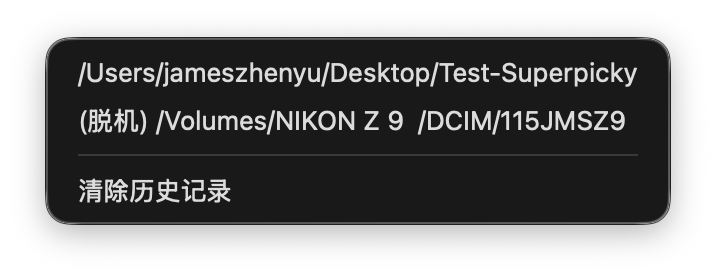
菜单栏的「最近目录」菜单会记录最近使用过的照片文件夹,每次选择新目录后列表自动更新。
The Recent Folders menu in the menu bar keeps a list of recently used photo directories, updated automatically each time you select a new folder.
-
→
可用目录:直接点击条目即可加载,无需重新浏览,适合日常同一张卡反复处理的场景。
Available folders: Click an entry to load it directly — no need to browse again. Handy when you repeatedly work with the same card or drive.
-
→
脱机目录:外接硬盘未挂载或文件夹已被移动时,条目前显示「(脱机)」标记,点击时弹出提示而不会实际加载。
Offline folders: When an external drive is unmounted or a folder has moved, the entry is prefixed with (Offline) and clicking it shows a warning instead of loading.
-
→
清除历史:菜单底部的「清除历史记录」可一键清空全部记录。
Clear history: The "Clear History" entry at the bottom of the menu removes all saved entries at once.
持久保存
Persistent Storage
最近目录保存在本地配置文件中,软件重启后仍然有效。
Recent folders are saved in the local config file and persist across restarts.
2.4
菜单栏功能概览
Menu Bar Overview
菜单栏(macOS 屏幕顶部 / Windows 窗口顶部)从左到右依次为:
The menu bar (top of screen on macOS, top of window on Windows) contains the following menus from left to right:
|
菜单
Menu
|
主要内容
Contents
|
|
识鸟
Bird ID
|
显示 / 隐藏右侧识鸟面板(BirdID Dock)
Show / hide the BirdID Dock on the right side
|
|
视频
Video
|
打开独立的视频分析窗口(第 09 章)
Open the standalone Video Analysis window (Chapter 09)
|
|
最近目录
Recent Folders
|
快速重载历史目录(见 2.3)
Quickly reload a previously used folder (see Section 2.3)
|
|
设置
Settings
|
高级参数设置、摄影水平预设、检查更新、环境修复、界面语言切换
Advanced settings, skill level preset, check for updates, environment repair, UI language switch
|
|
帮助
Help
|
关于软件
About the app
|
「设置」菜单 vs 主界面参数区
Settings Menu vs. Main Parameters Area
主界面的参数区(锐度、美学滑块等)是高频调整区,每次处理前可根据拍摄场景随时调整;「设置 → 高级参数设置」里的选项是底层配置,通常一次设好后很少改动。
The main parameters area (sharpness, aesthetics sliders, etc.) is for frequent adjustments before each cull. The options under Settings → Advanced Settings are underlying configurations you set once and rarely revisit.
高级参数设置的完整说明见第 10 章。
Full documentation of Advanced Settings is in Chapter 10.